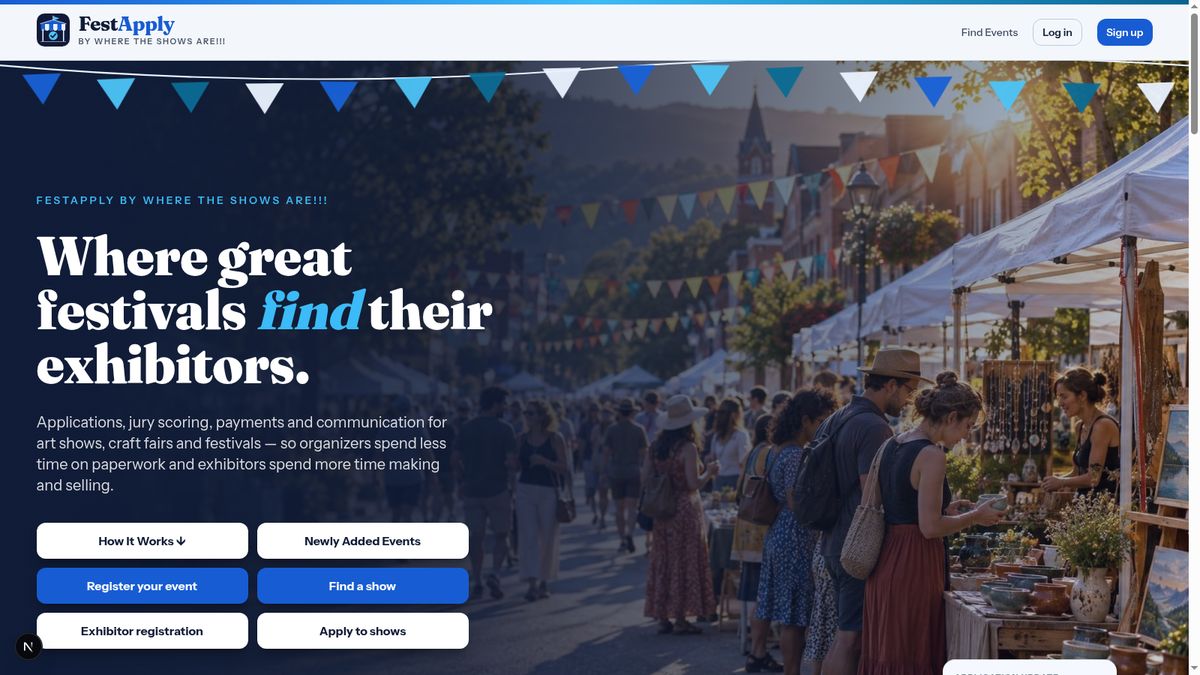
Welcome to FestApply. This lesson shows you how to create your exhibitor account. On the home page, find the box called If you take part in events, and click Sign Up as an Exhibitor. Under it, a link lets you watch the tutorials first.
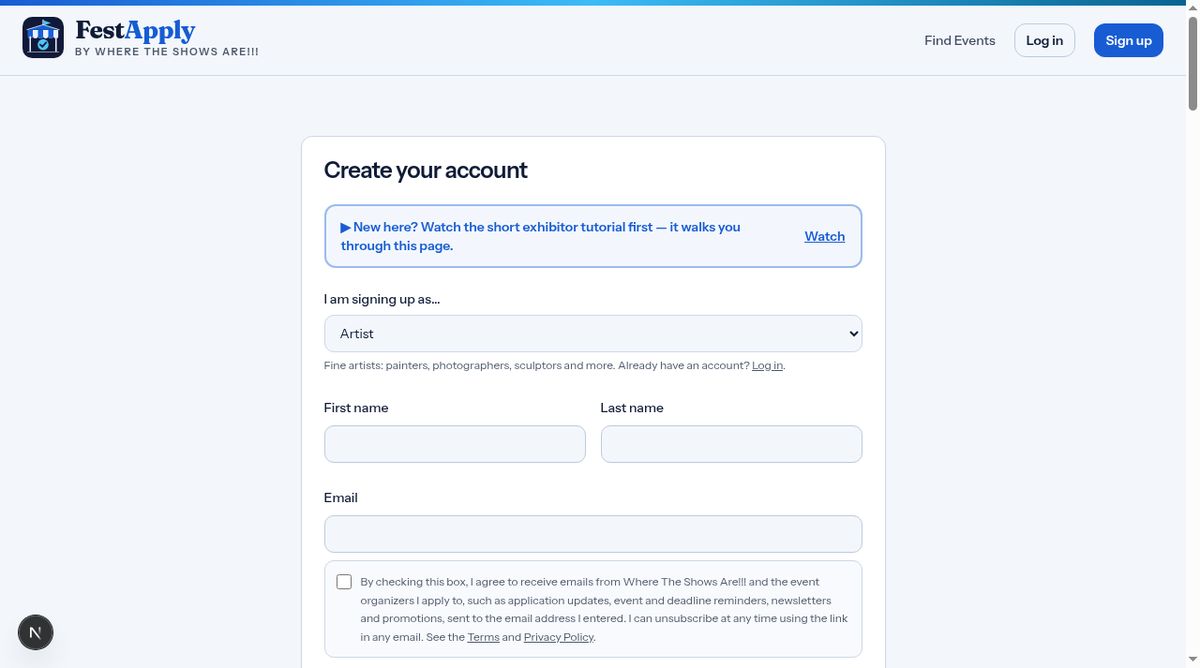
At the top of the sign-up page you will see a link to these tutorials. Start by choosing what kind of exhibitor you are. Artists, craftspeople, food vendors, commercial vendors and entertainers all sign up here. Pick the one that fits you best.
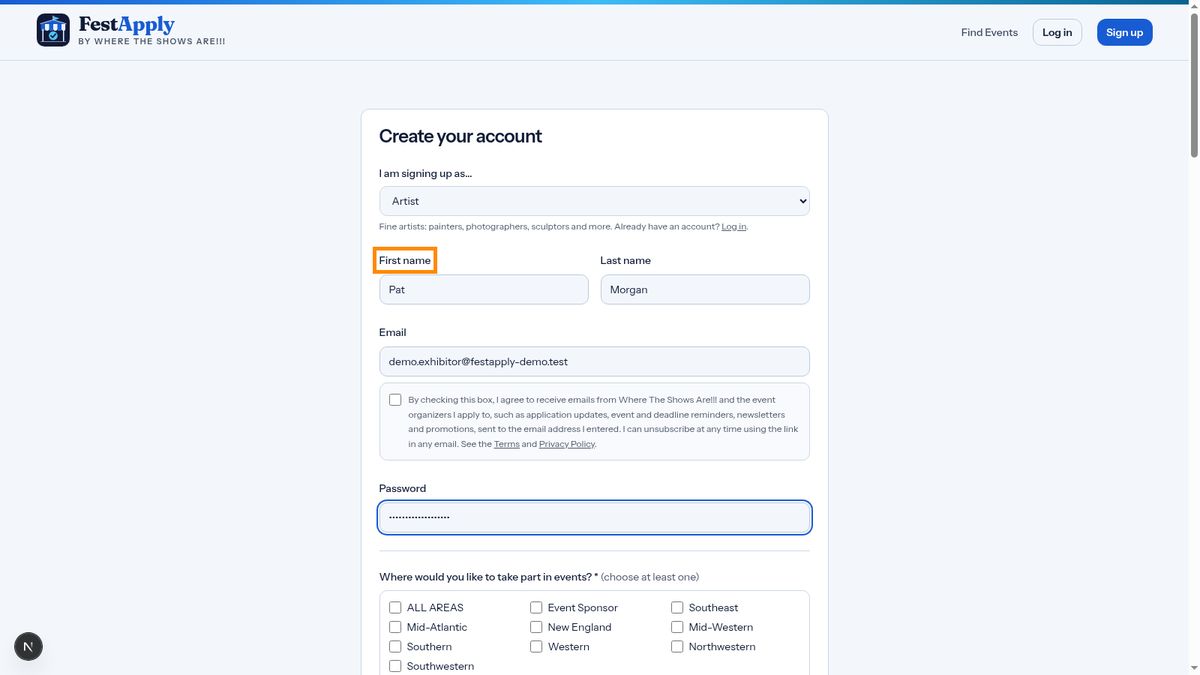
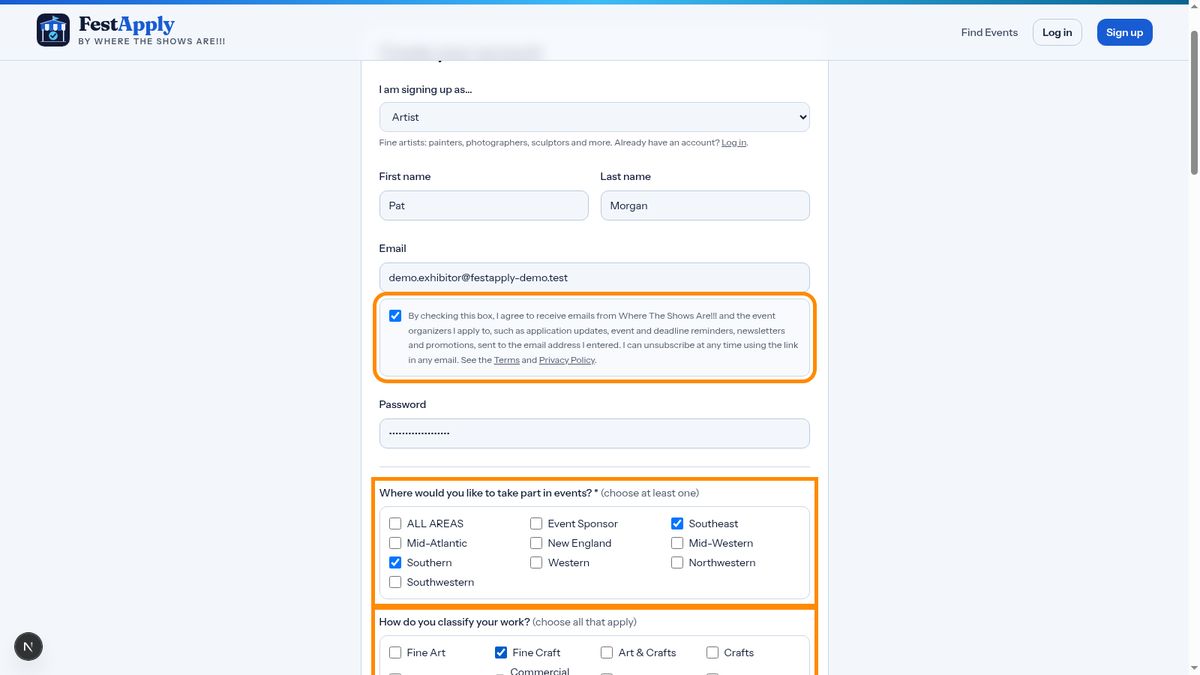
Enter your first and last name, your email address, and choose a password. Use an email you check often, because show information and updates will come here.
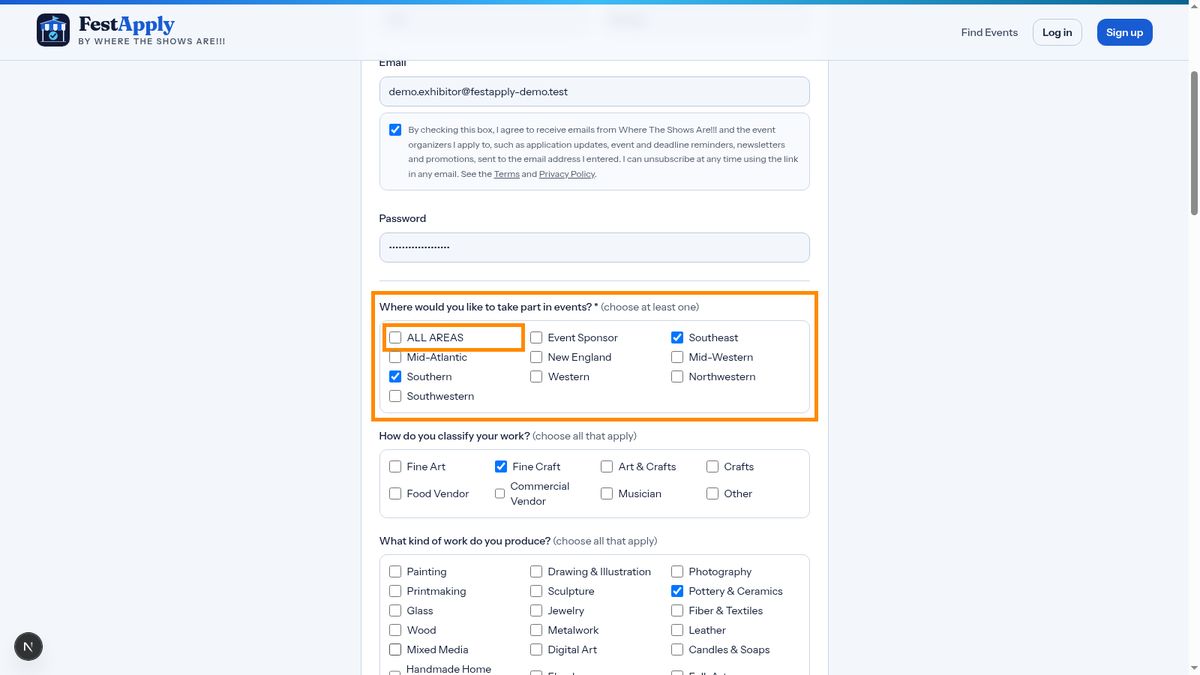
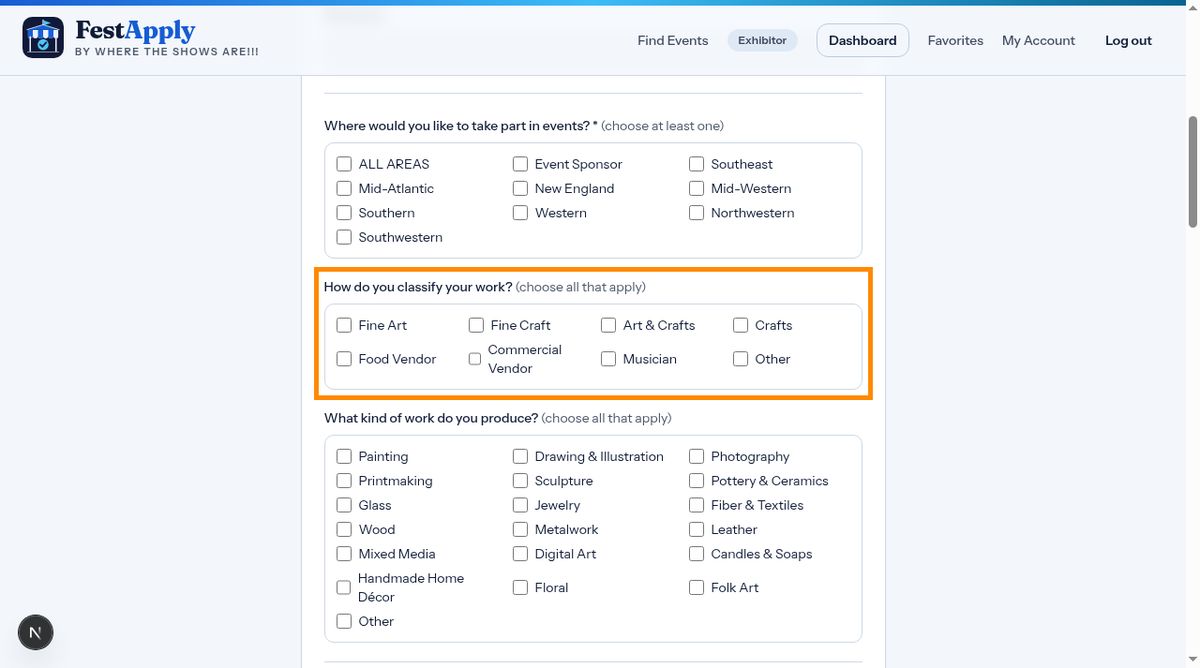
Next, choose where you would like to take part in events. Tick every region you'd like to hear about. These choices decide which new shows we notify you about, so choose all that apply.
Tell us how you classify your work, such as fine art, fine craft, crafts, or food. Event sponsors use this to understand what you offer.
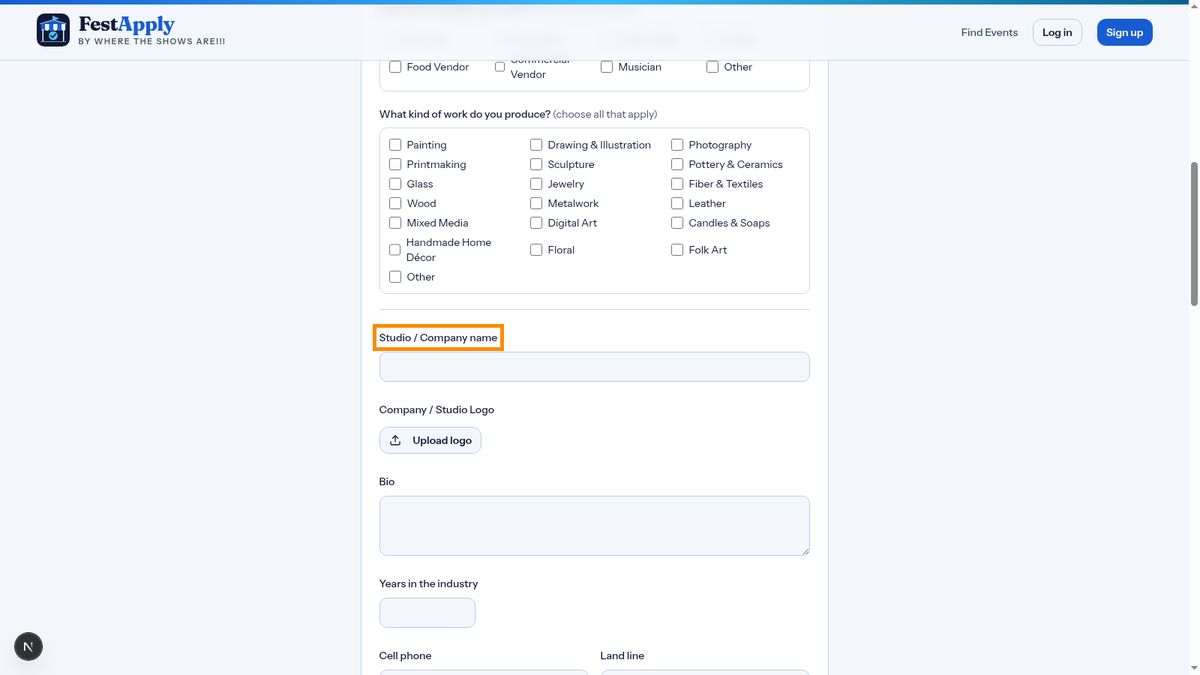
Add your studio or company name. This is the name event sponsors will see.
You can choose to receive emails about shows and deadlines. It's optional, and you can change it at any time.
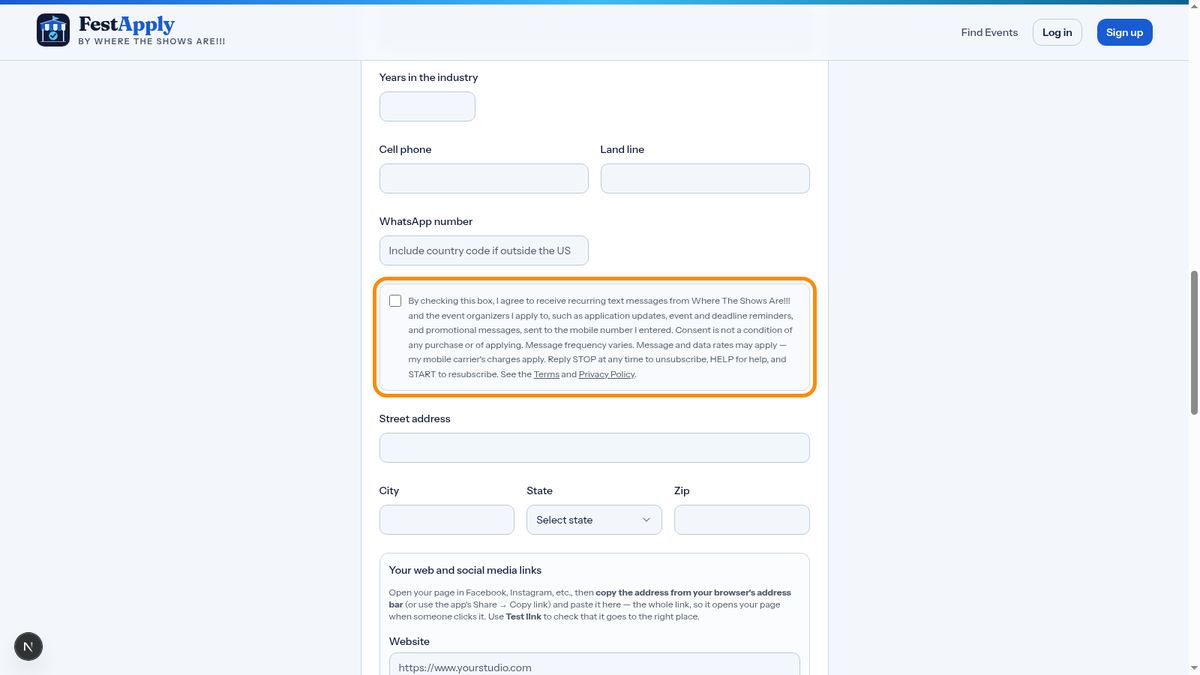
Text messages are optional too. Tick this box only if you want text updates. Standard message and data rates may apply, and you can reply STOP at any time.
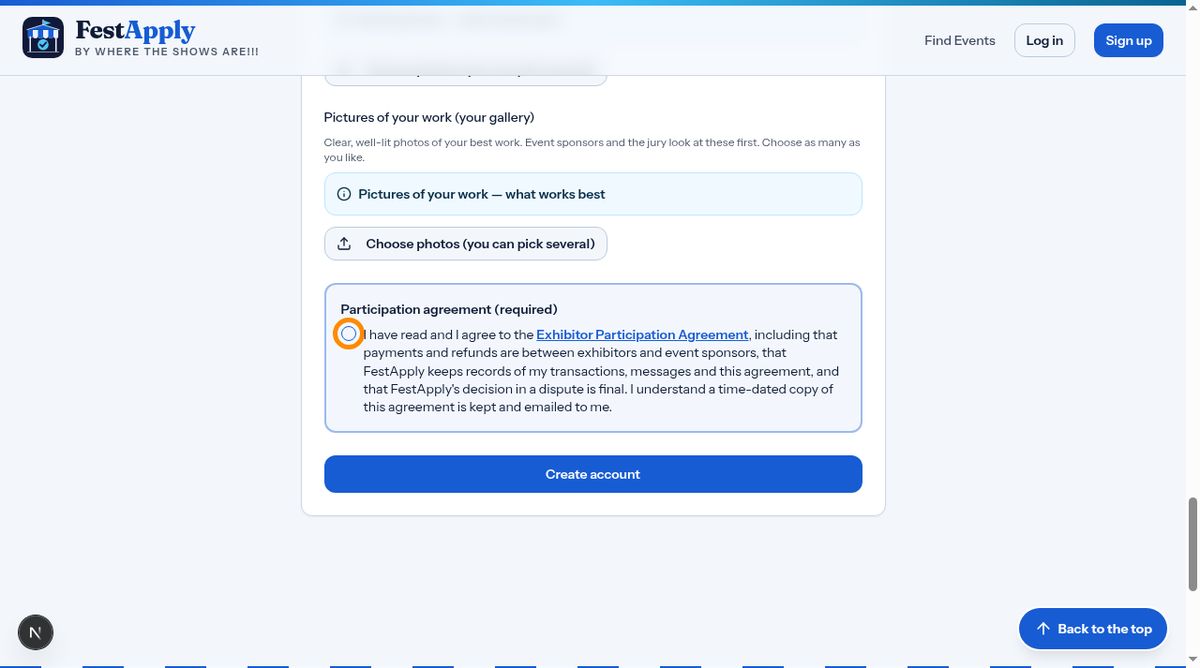
Before you create your account, read the Exhibitor Participation Agreement. Click its name to read it in full. It explains that your payments and refunds are between you and each event sponsor, that FestApply keeps records of payments, messages and this agreement, and that FestApply's decision in a dispute is final. Tick the box to agree. You cannot create an account without it, and a dated copy is kept and emailed to you.
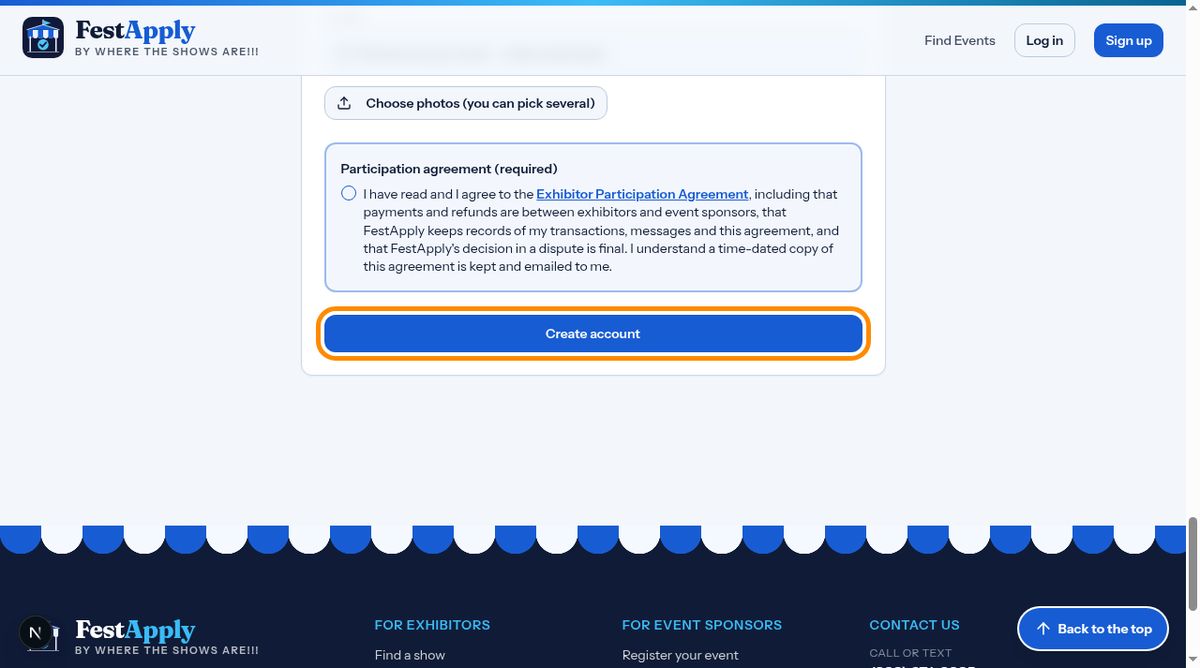
When you're ready, click Create account.
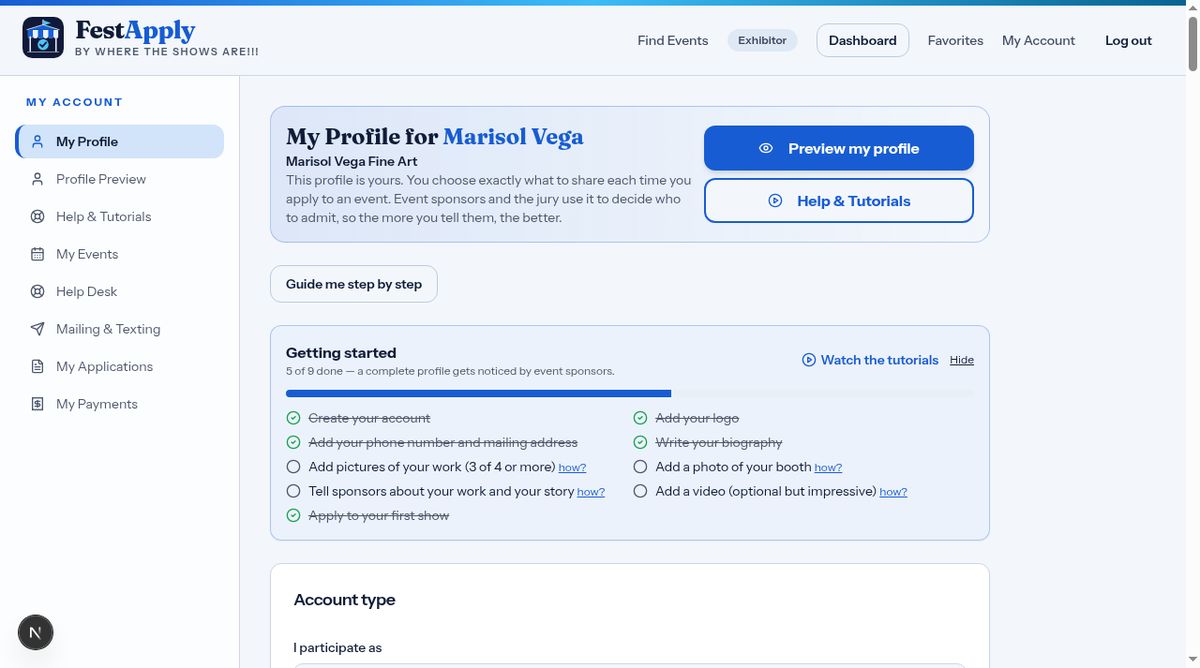
That takes you to your profile, which is where you'll spend most of your time. The heading always tells you whose profile you are looking at. It reads My Profile for, followed by your name. The next lessons show you how to complete it.
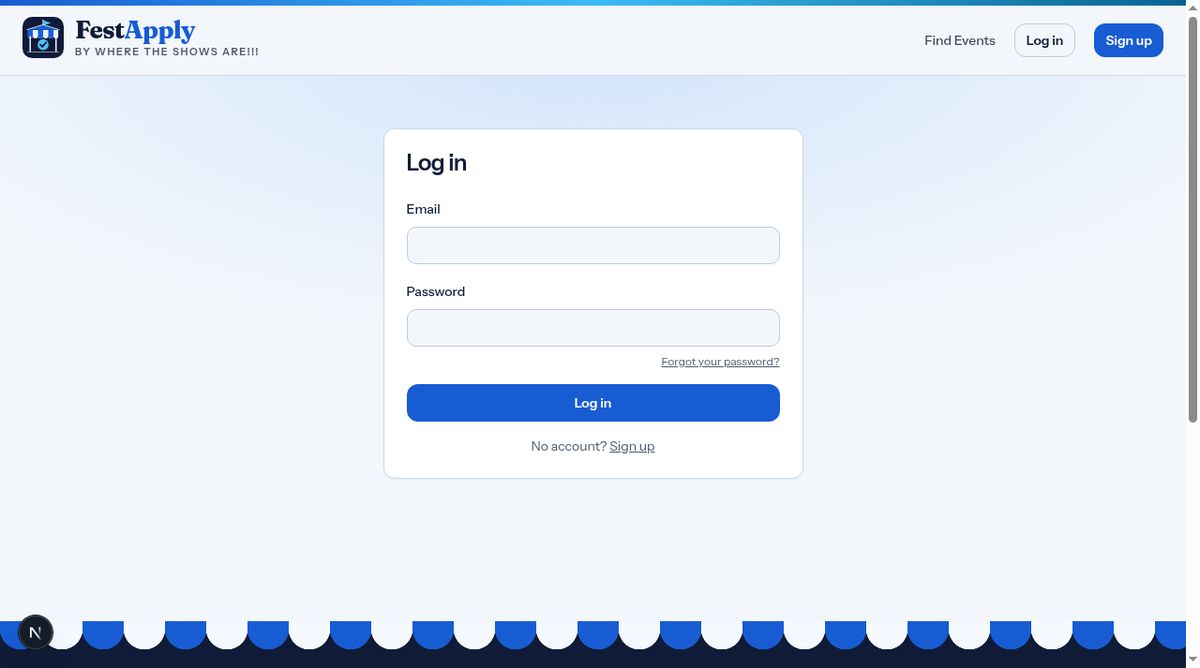
Next time, use Log in at the top of any page, with your email and password.