1Start at the home page
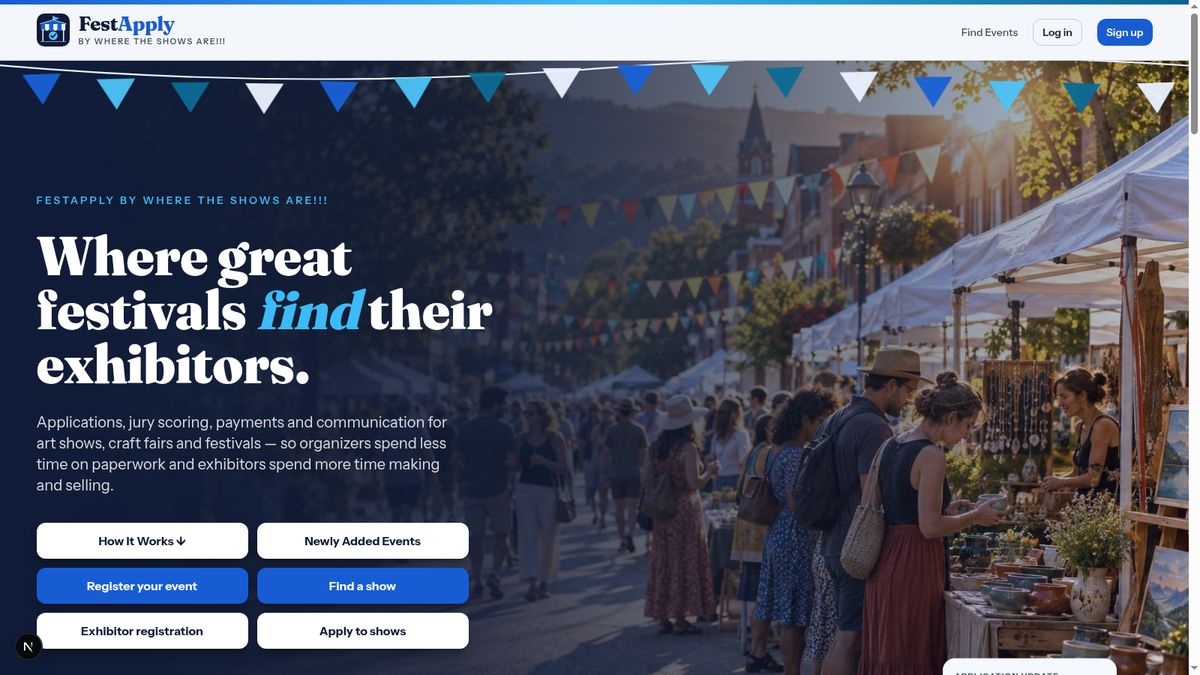
Welcome to FestApply. This lesson shows you how to get started as an event sponsor. On the home page, find the box called If you run an event, and click Register Events. You can also watch the tutorials first.
Lesson 1 of 11
Create your sponsor account, find your dashboard, and set up your contact details.
Welcome to FestApply. This lesson shows you how to get started as an event sponsor. On the home page, find the box called If you run an event, and click Register Events. You can also watch the tutorials first.
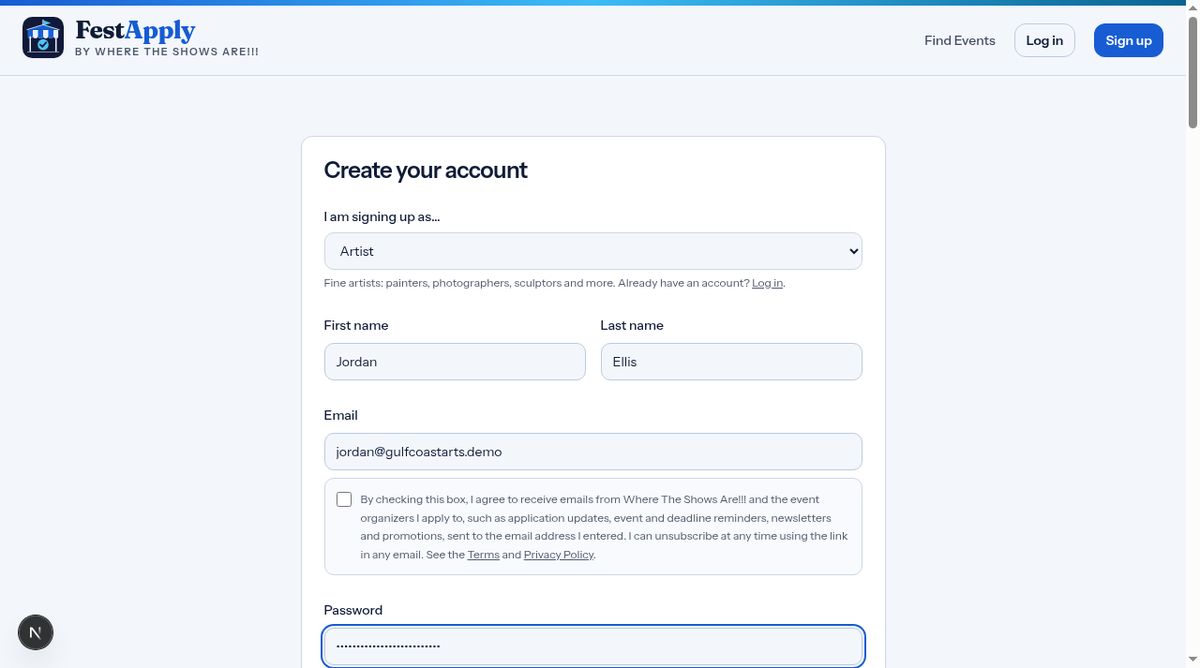
Fill in the sign-up form. Choose the kinds of events you run, so exhibitors can find you.
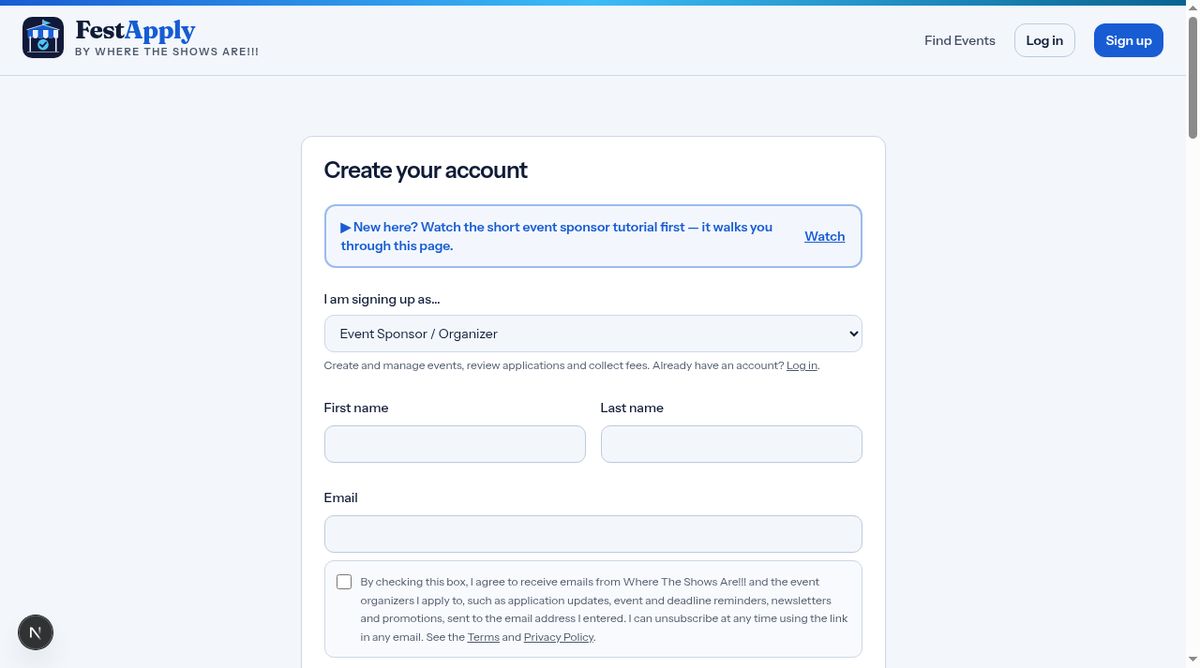
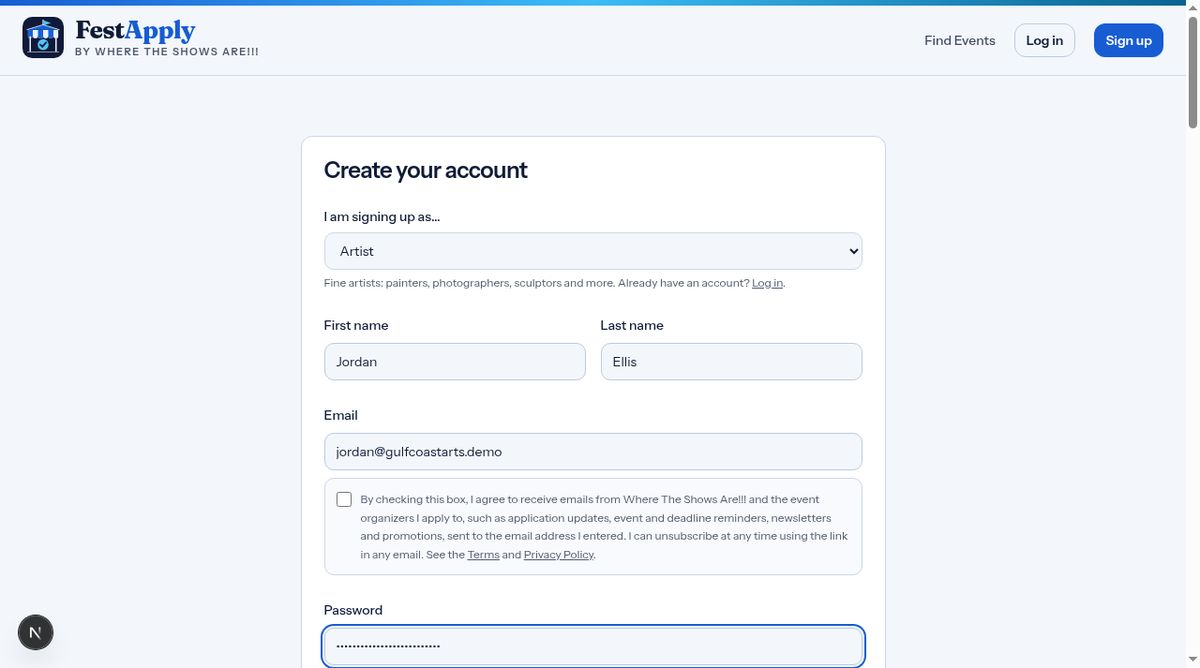
Enter your name, your email address, and a password. Use an email you check every day, because applications and messages arrive here.
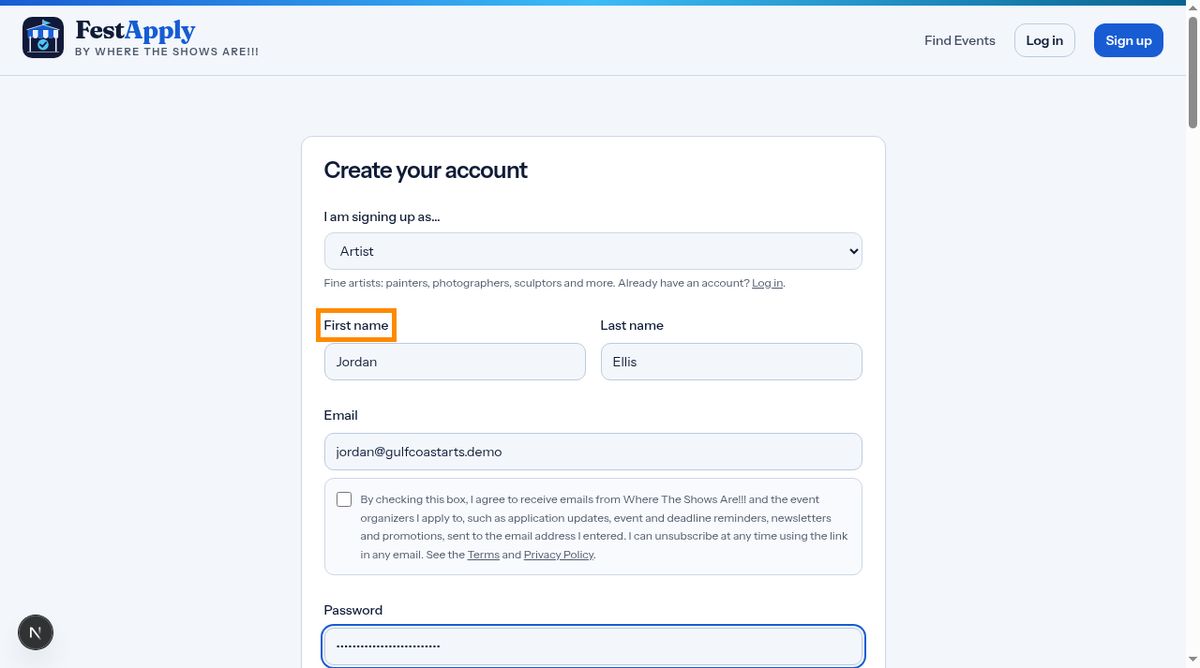
Add the name of your organization, such as your arts council or promotion company.
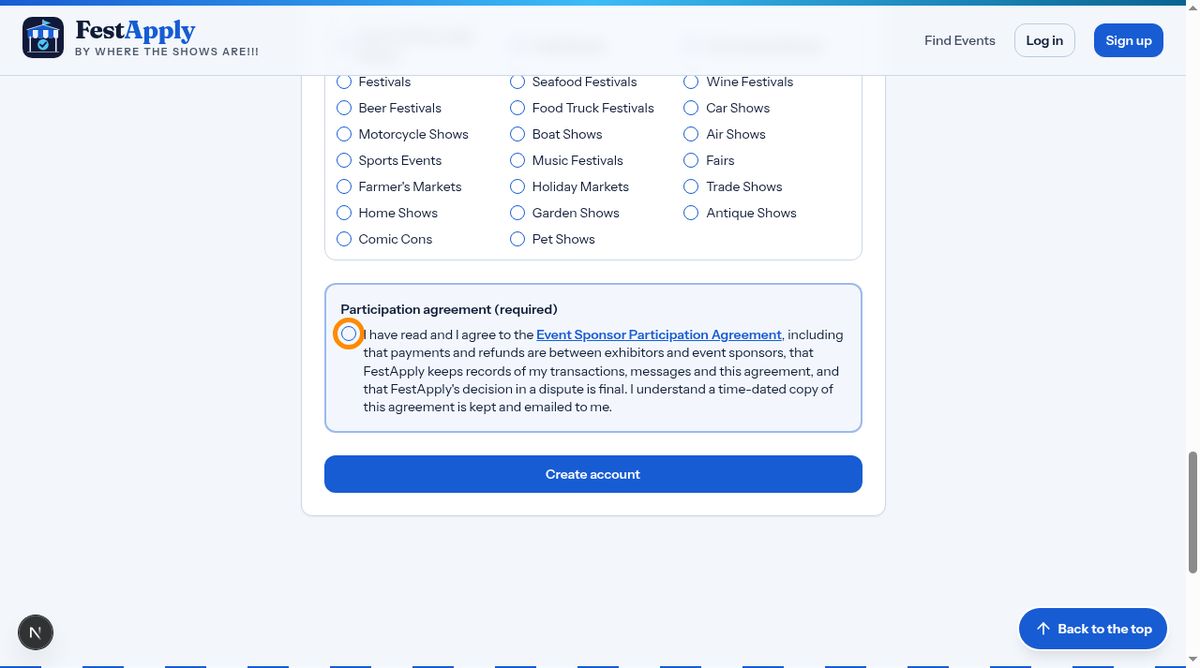
Tick the kinds of events you produce. You can change this later.
Before you create your account, read the Event Sponsor Participation Agreement. It explains that payments and refunds between you and exhibitors are yours alone, that FestApply charges a platform fee on each transaction, billed weekly on Monday, and that the fee is not refunded if you refund an exhibitor. It also explains that you must report exhibitors who come from FestApply but apply elsewhere. Tick the box to agree. You cannot register without it.
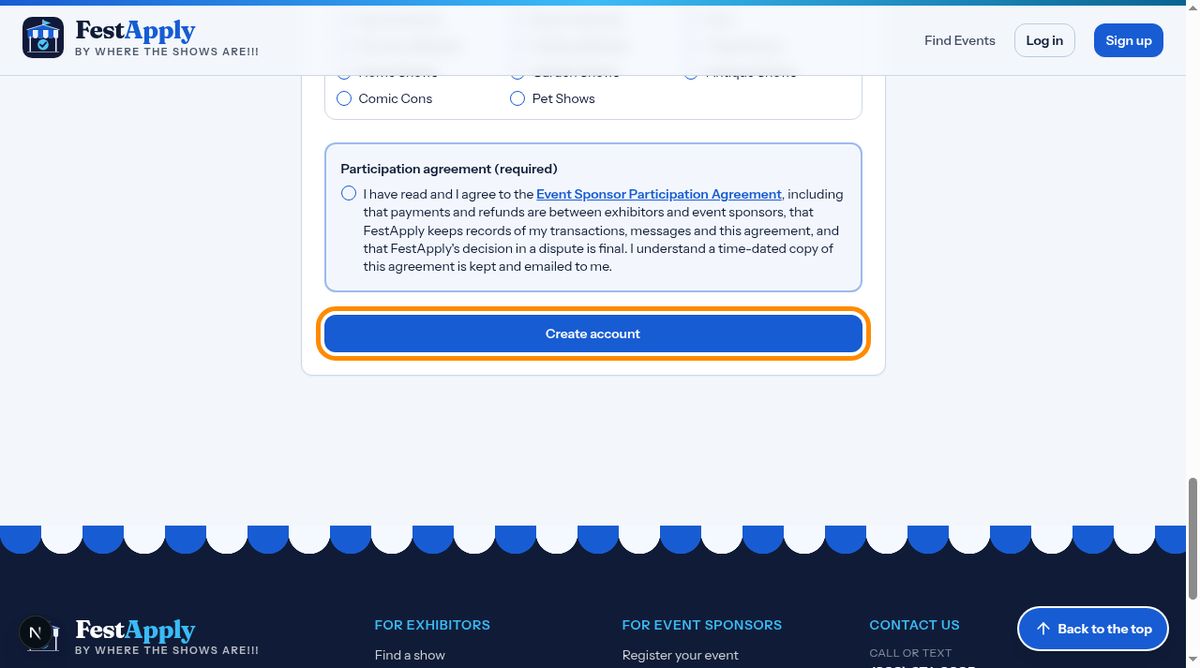
Click the create button. Your account is active right away, and you can log in. When you submit a listing, the FestApply team reviews it before it goes live.
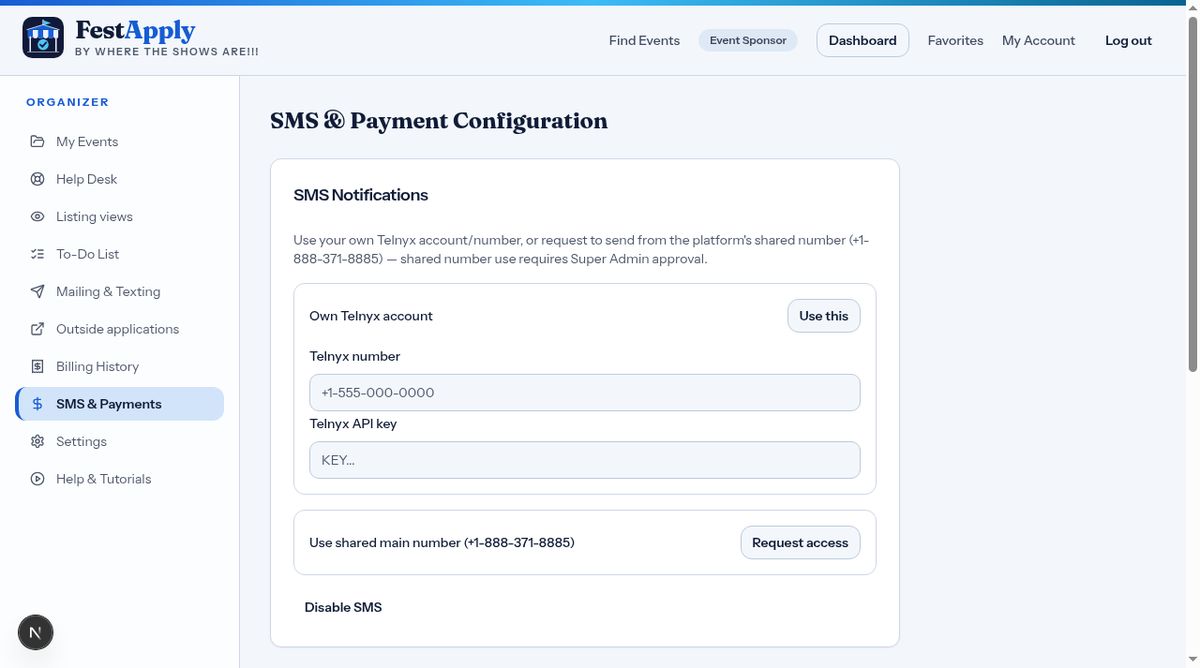
This is your dashboard. On the left is your menu: My Events, Help Desk, Listing views, To-Do List, Mailing and Texting, Outside applications, Billing History, SMS and Payments, Settings, and Help and Tutorials.
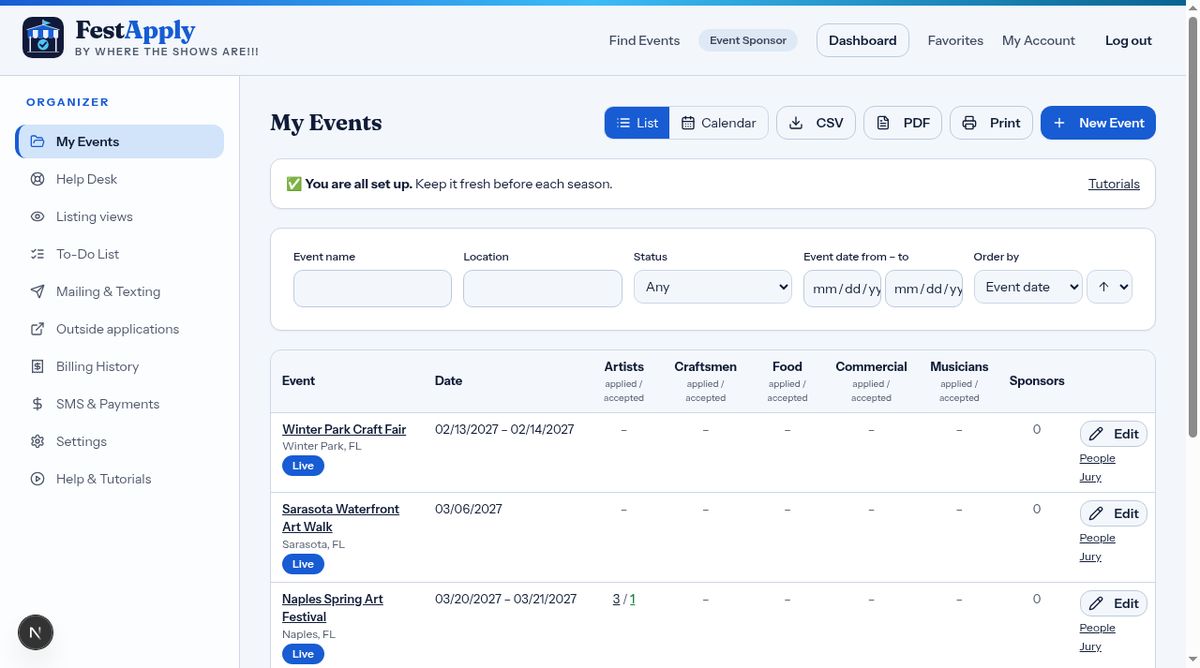
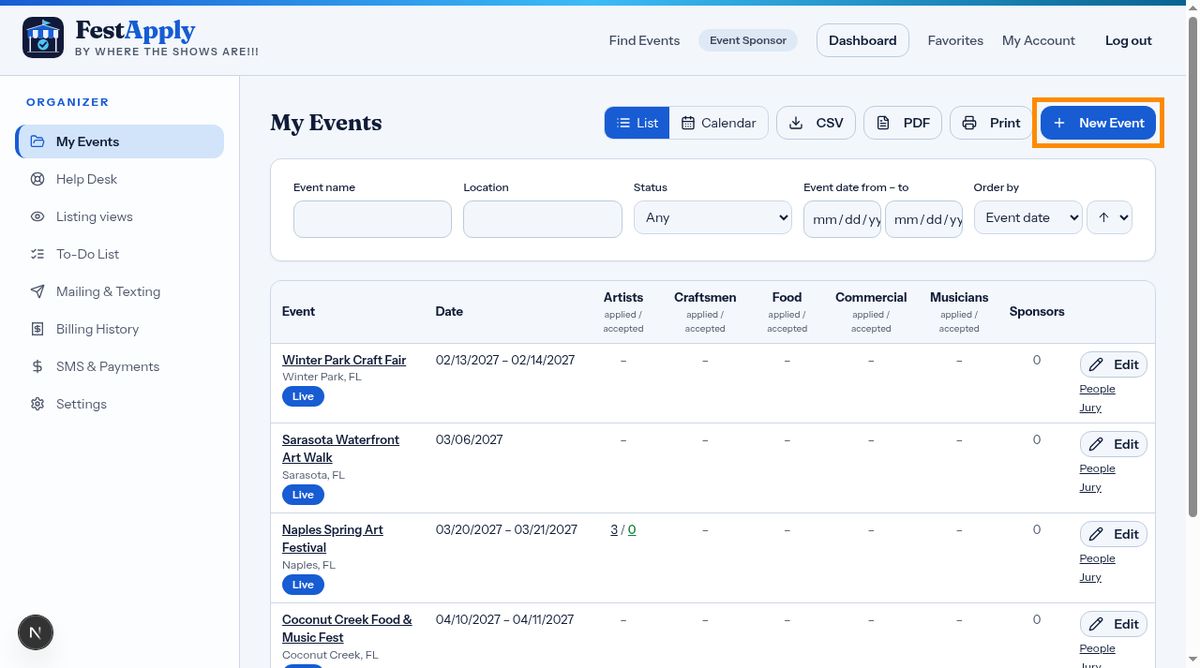
When you are ready, the new event button starts your first listing. We will do that in the next lesson.
Further down is your contact card. You can keep more than one email address and phone number.
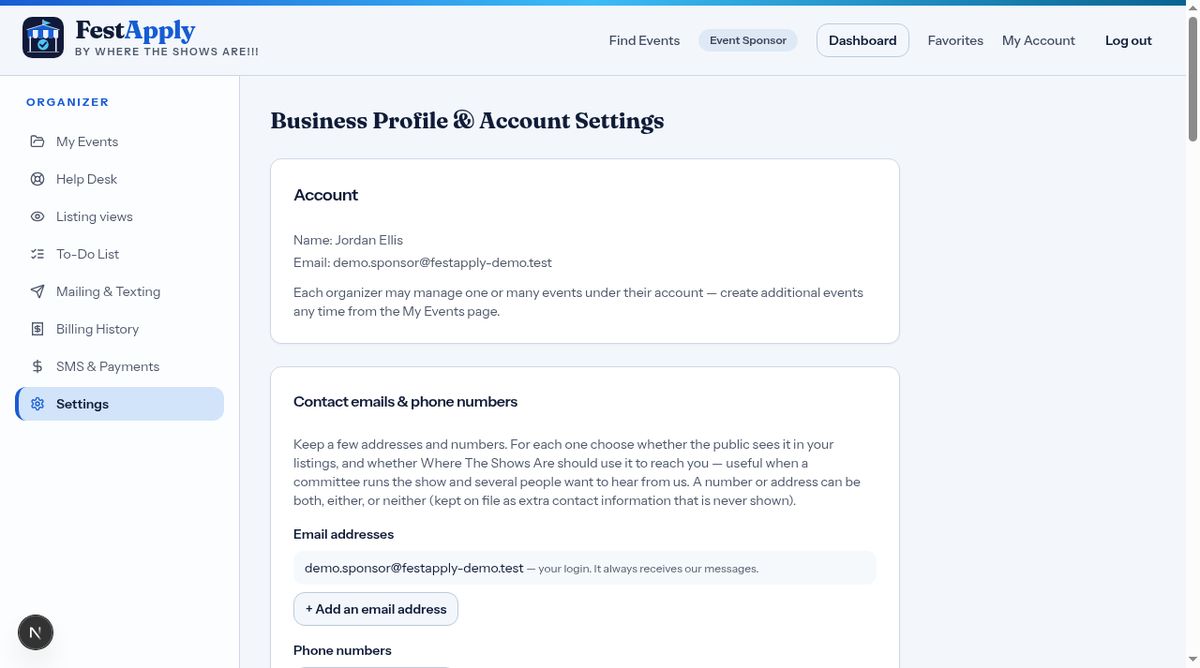
For example, add the chairperson, the treasurer, and a hotline. Give each one a label.
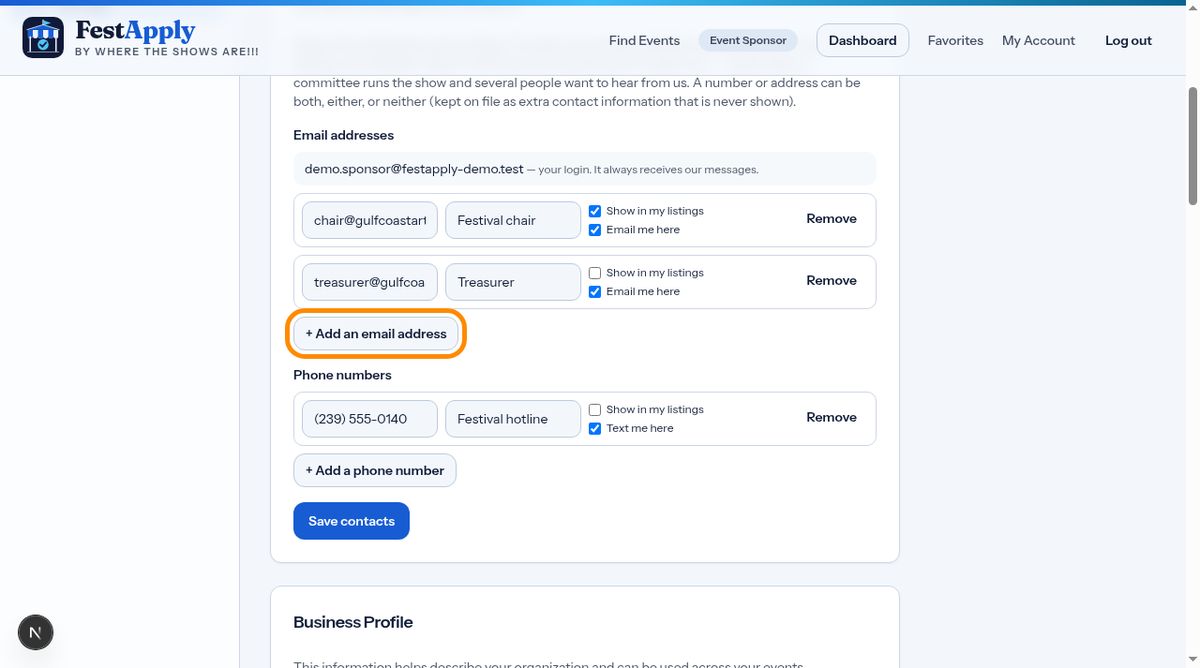
For every address, choose whether it is shown on your public listing, and whether it receives notices, such as new applications. A private treasurer address can receive notices without being shown.
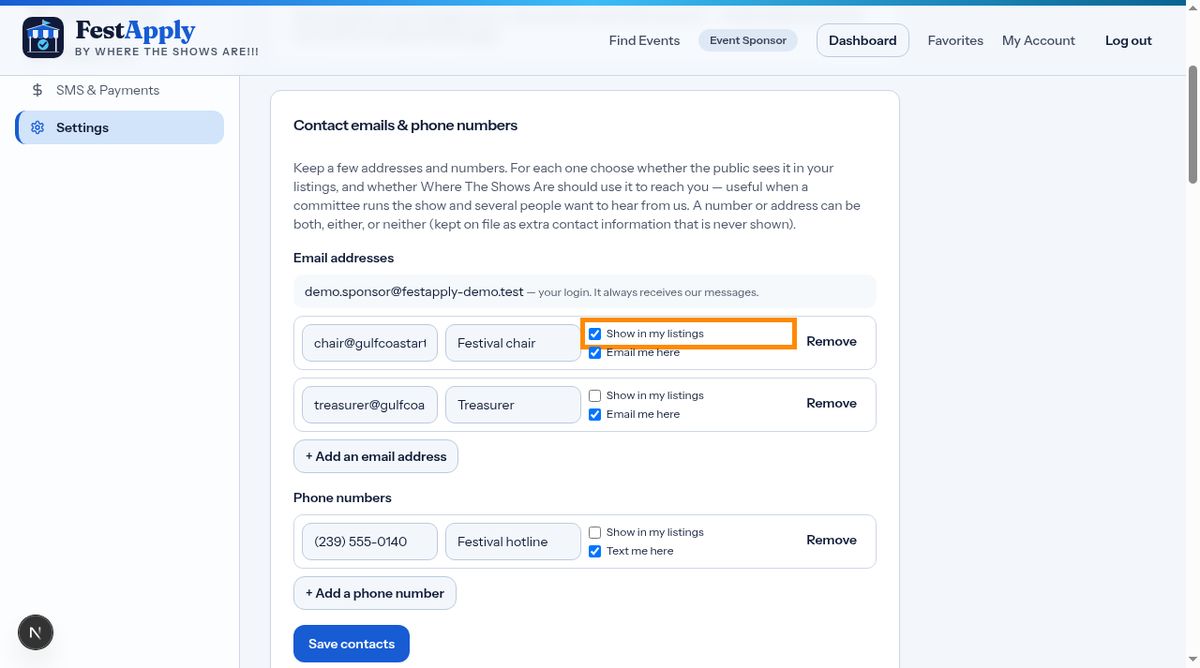
Click save, and your contacts are updated everywhere.
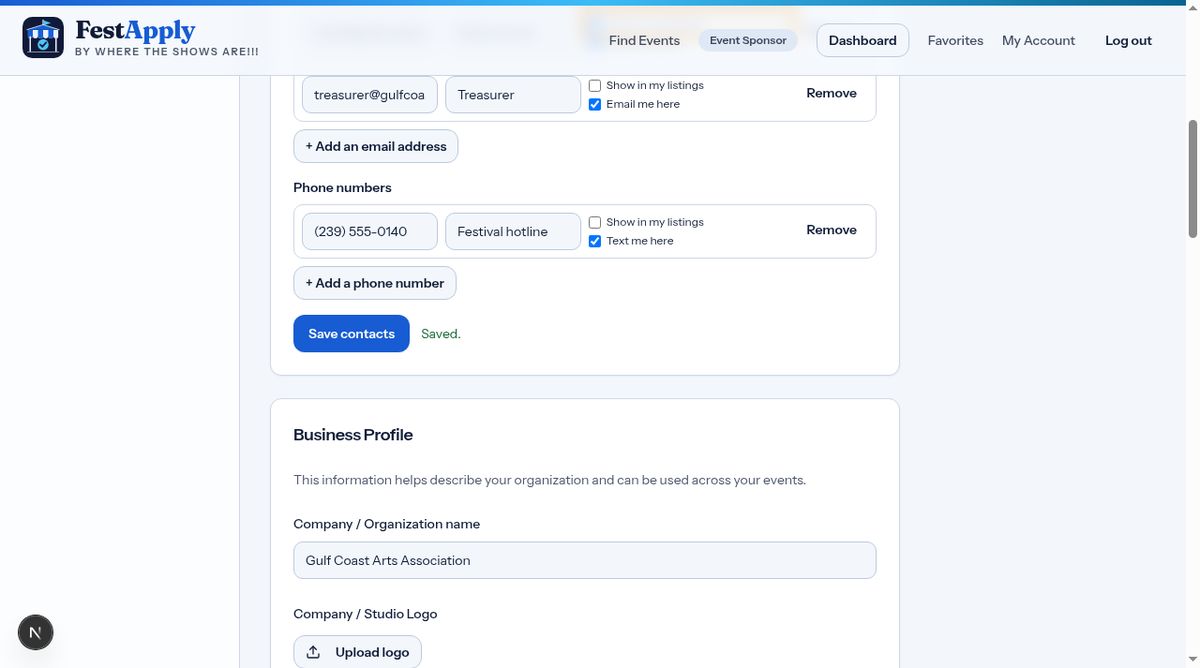
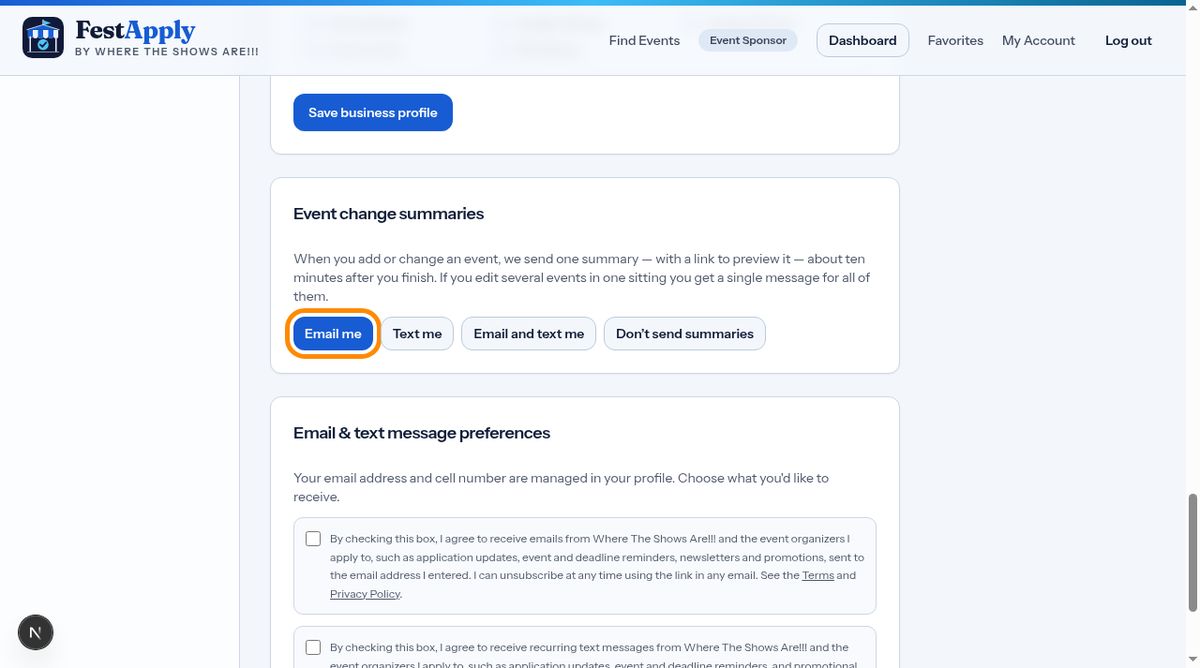
In your account settings you can choose how often you receive a summary of changes to your events, so you always know what happened.
To collect application fees, open SMS and Payments. The Getting Paid lesson shows you how to connect your payment account and how weekly billing works.