1Photos sell a show
Photos sell a show. Add eight to twenty of your best photos: the crowd, the booths, the venue. The first photo becomes the picture on your listing.
Lesson 6 of 21
Show your show: a photo gallery, a video, and the preview card people see when they share your link.
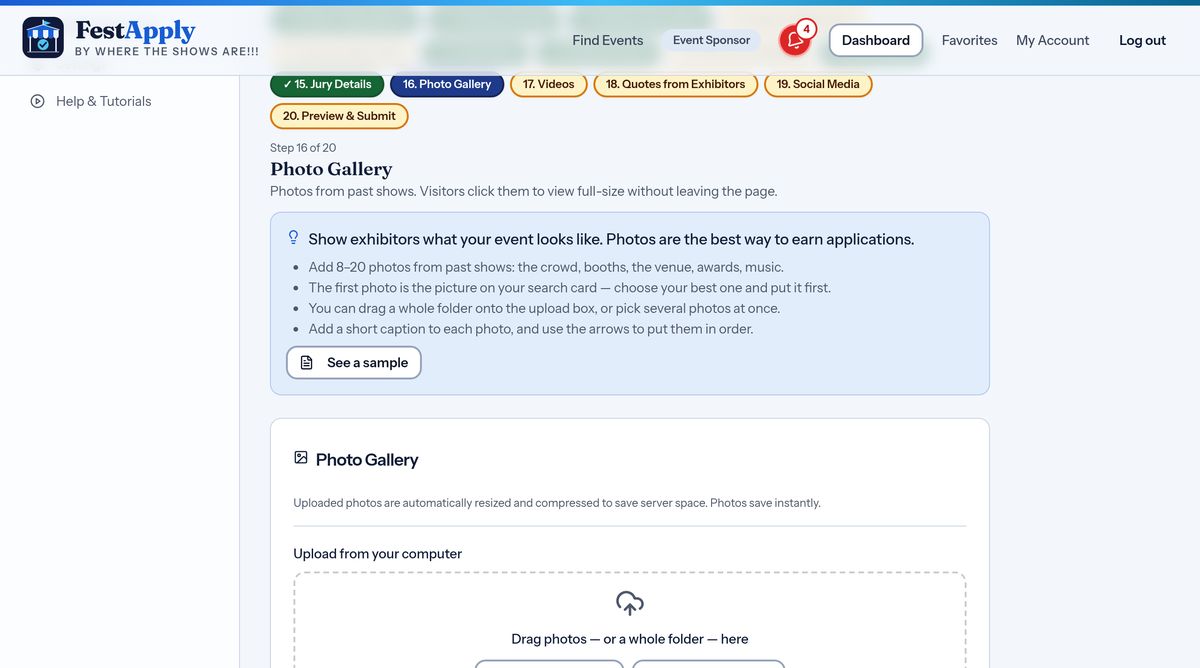
Photos sell a show. Add eight to twenty of your best photos: the crowd, the booths, the venue. The first photo becomes the picture on your listing.
Drag photos, or a whole folder, onto the upload box. FestApply shrinks them for you so your page loads quickly, and you see the progress while they upload. Add a short caption to each, and drag them into the order you like.
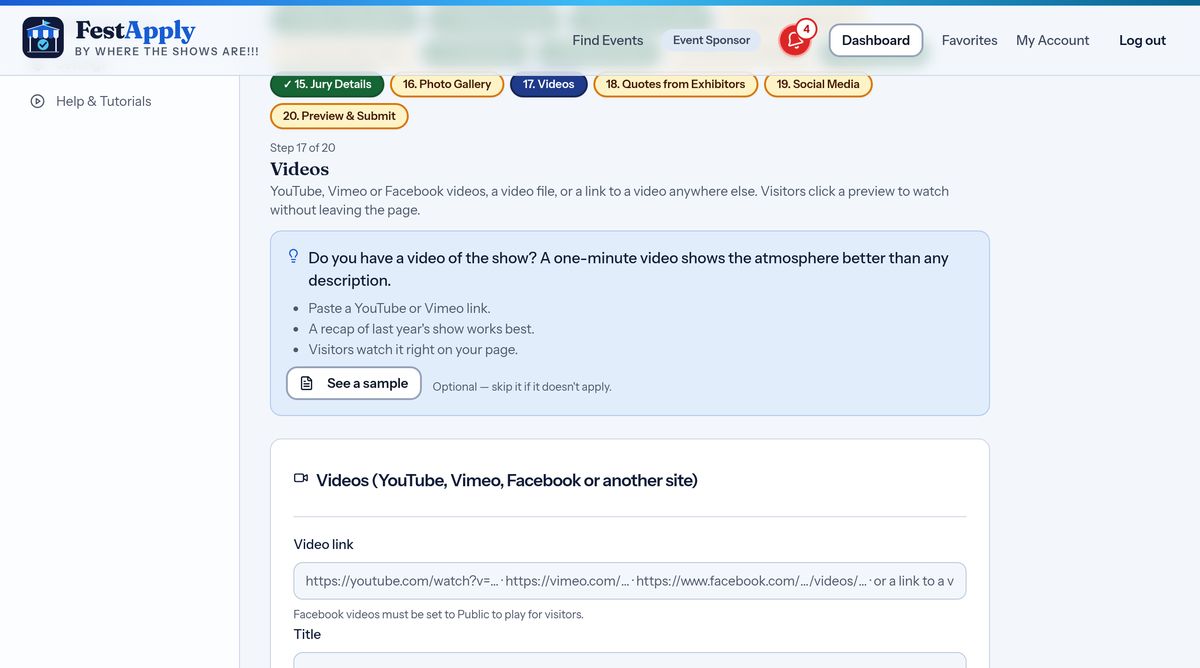
A one minute video shows the atmosphere better than words. Paste a YouTube, Vimeo or Facebook link, and add a title. Visitors watch it right on your page. A Facebook video must be set to Public, or visitors will not see it.
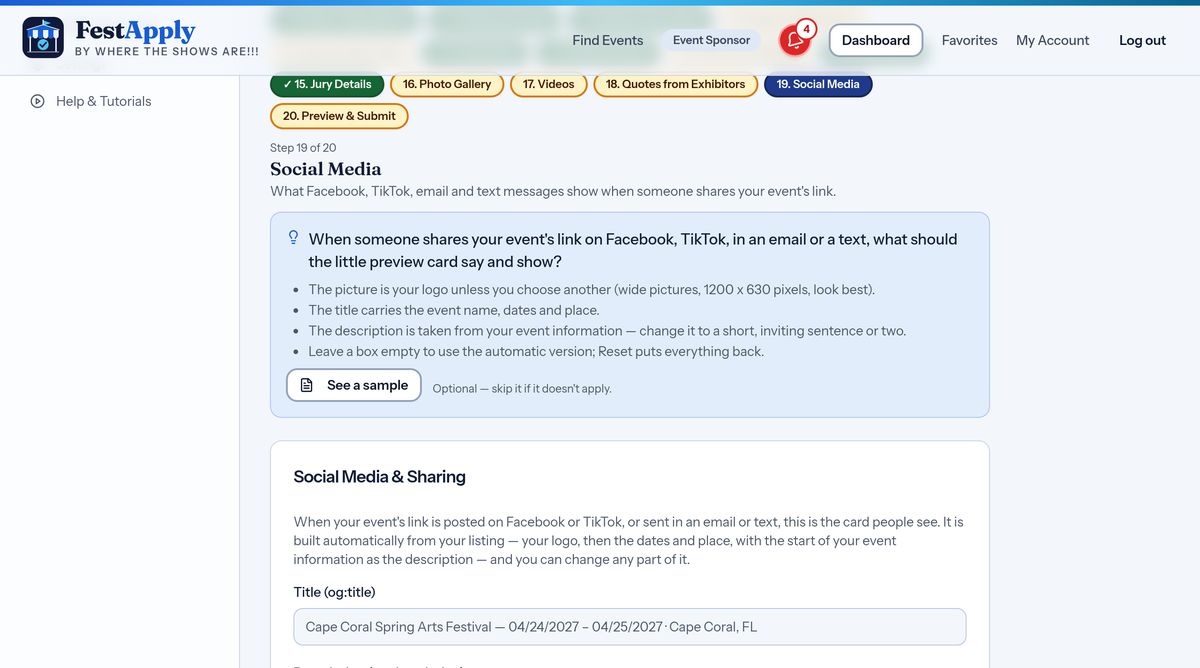
When someone shares your event link on Facebook or TikTok, or in an email or a text, a small preview card appears. It uses your logo, and a title with your event name, dates and place. You can change the picture, the title and the description, or leave them empty and FestApply fills them in.